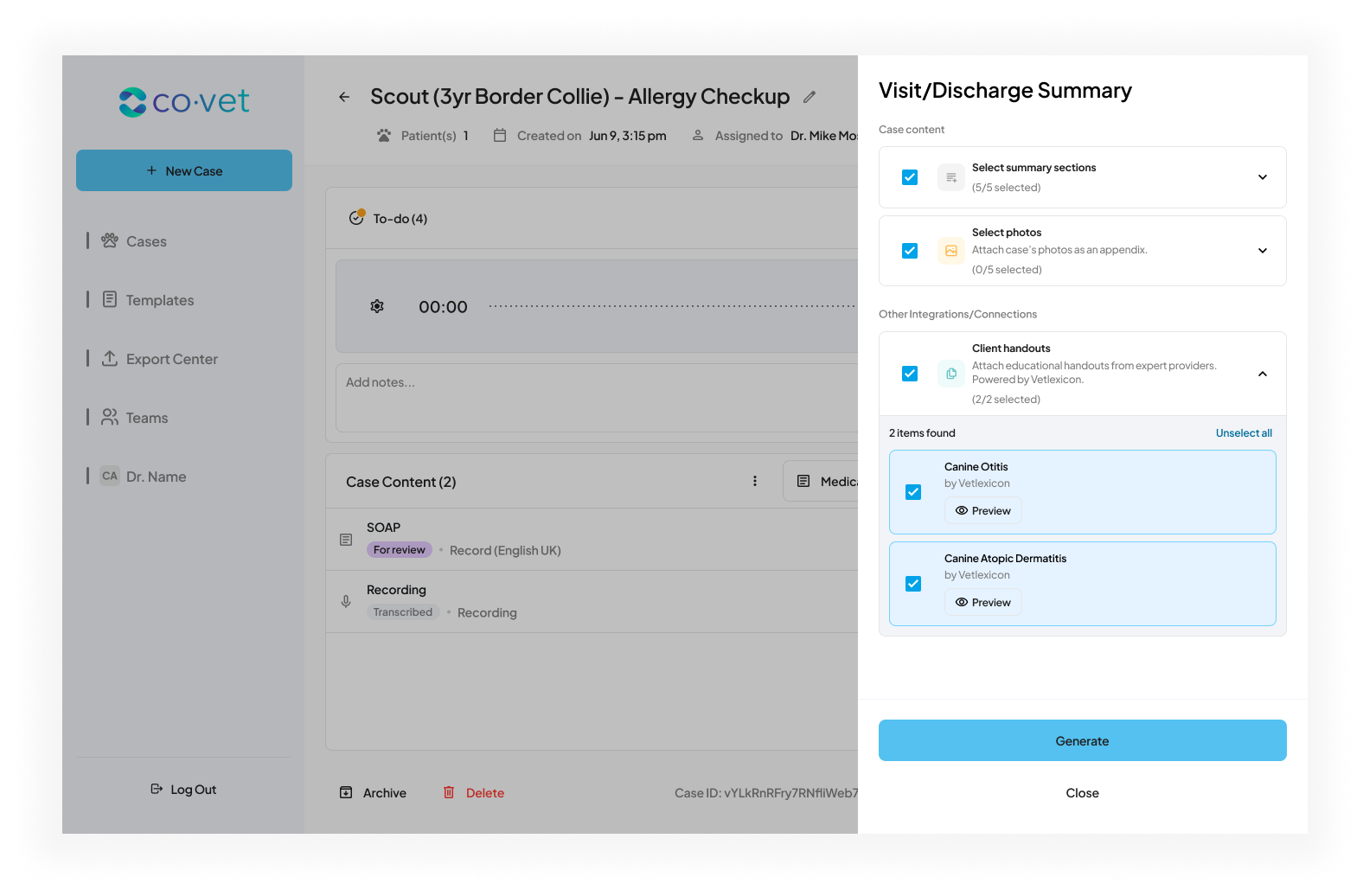
You can access Client Handouts from the case page, within content and templates, and while creating a discharge summary.
Content Attachments let you include case photos and PDFs when you send or download case documents from CoVet.
Who Can Use Content Attachments?
Content Attachments are available to all users.
No setup is required. The Attachments button appears automatically when a case includes photos or PDFs.
Add Attachments to a Case Document
You can select attachments directly from the content page.
- Open a Case.
- Navigate to the content you are working on.
- Click the Attachments button in the toolbar.
- The Edit Attachments panel will open.
From there, you can:
- Browse available case photos.
- Browse available case PDFs.
- Select or unselect individual items.
- Use Select all or Unselect all within each section.
The Attachments button displays how many items are selected compared to the total available.
Send a Document with Attachments
When sending any case document, including:
- Visit Summaries
- Discharge Summaries
- Medical records
- Other generated outputs
Selected attachments are automatically bundled with the document.
In the send dialog, you will see an Attachments checkbox confirming what will be included.
Once sent, the pet owner receives the document and selected attachments together.
Download a Document with Attachments
When downloading a case document, selected attachments are included automatically.
This ensures your saved or shared records contain both the written documentation and the supporting materials.
Manage Attachment Selections
You can update attachment selections at any time:
- Open the Attachments button from the content toolbar.
- Adjust your selections.
- Confirm your changes.
Your selected attachments will be included the next time you send or download that document.
Tips for Success
- Review attachments before sending to ensure only relevant photos or PDFs are included.
- Use Select all when sending a full documentation package.
- Use individual selection when you want to send only specific lab results or images.
Sharing Feedback or Reporting an Issue
If you spot an issue or want to share feedback, use the Feedback button on the Case Page.
Including what you clicked and what you expected to happen helps the team respond faster.
Was this article helpful?
That’s Great!
Thank you for your feedback
Sorry! We couldn't be helpful
Thank you for your feedback
Feedback sent
We appreciate your effort and will try to fix the article