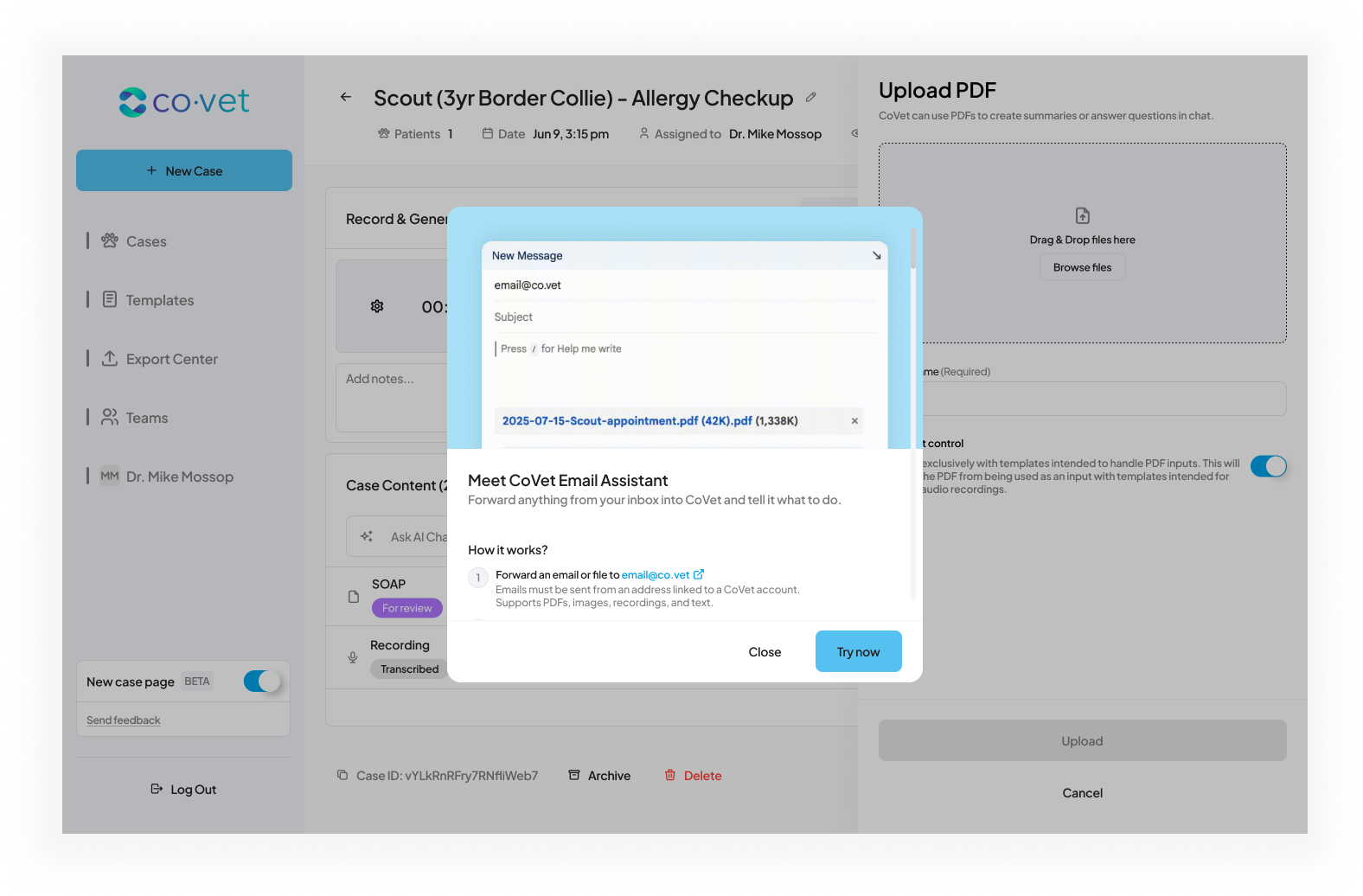
CoVet's Email Assistant helps you send information into CoVet cases without opening the app.
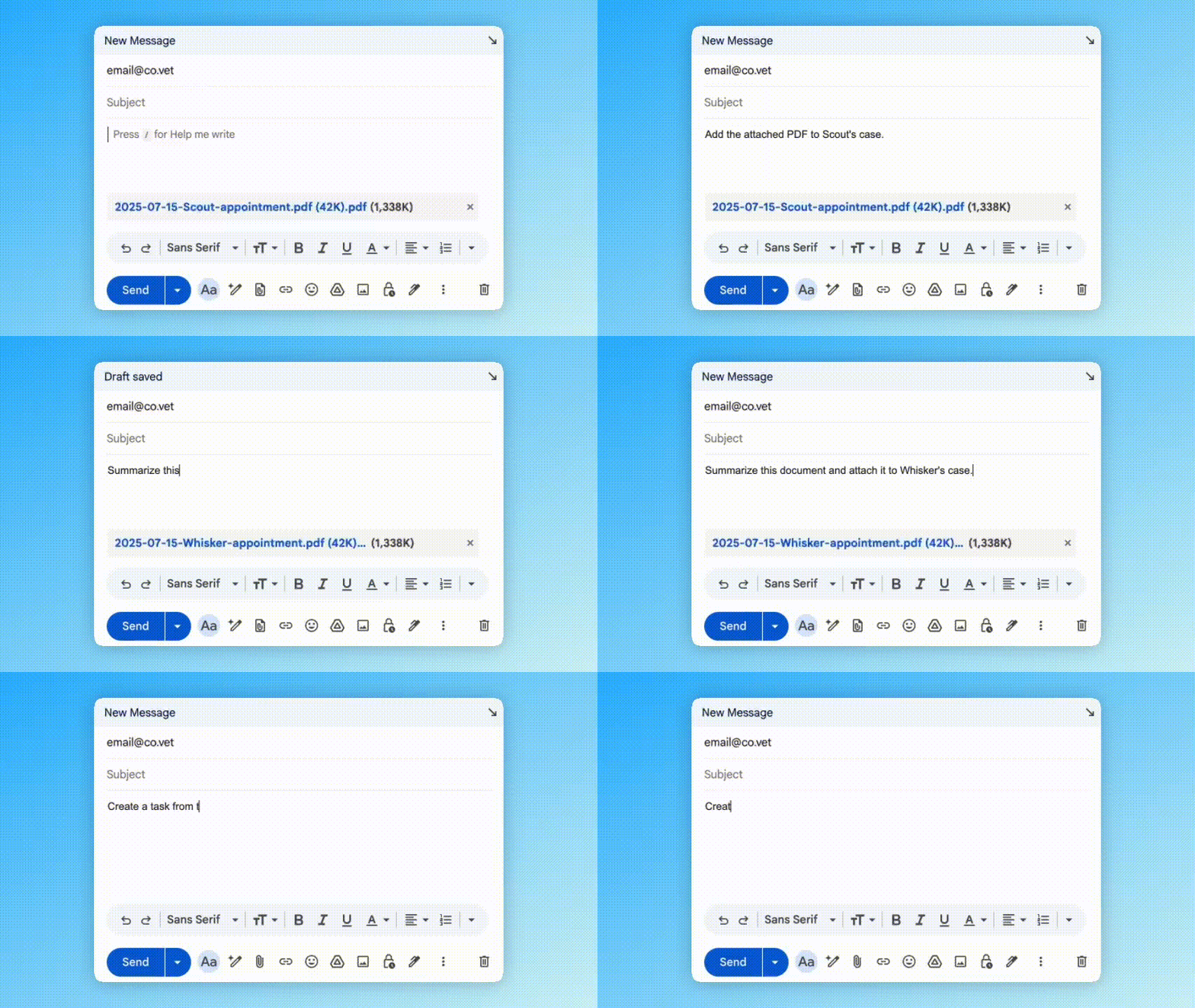
Forward an email or file to email@co.vet with a short instruction. CoVet will add it to the right case or create a new one, and email you if it needs clarification.
What is CoVet's Email Assistant?
Email Assistant connects your inbox to CoVet, so you can skip the “download, log in, upload” cycle.
It’s especially useful for external documents like lab results, referral letters, and client attachments.
For example, if a client emails you a PDF of a pet’s history, you can forward it to CoVet with an instruction like “Summarize this document and add it to Mia’s case.”
CoVet processes the file and follows your instruction, so you can stay focused on patient care.
Who Can Use It?
The Email Assistant is for the whole team. If someone has a CoVet account and is part of your practice or organization, they can help with intake.
This is especially helpful for:
- Front desk staff
- Veterinary technicians
- Practice managers
- Support staff managing referrals
How It Works
To use Email Assistant, first:
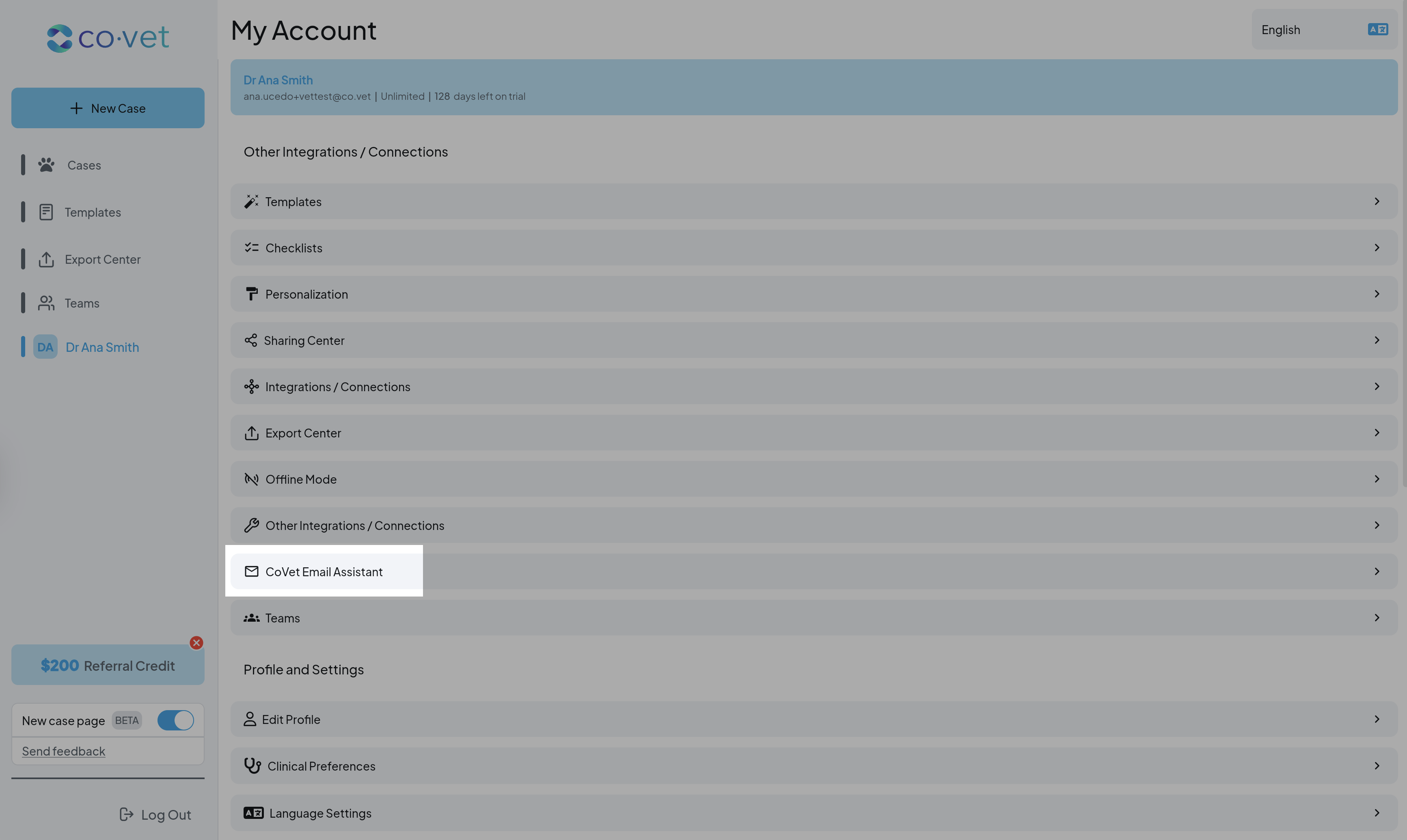
- Go to Settings and turn on Enable CoVet Email Assistant.
- Send emails from an address that’s linked to your CoVet account.
If the sender email is not linked to a CoVet account, CoVet cannot apply the action to the right workspace.
Once the Email Assistant is enabled:
- Open your email.
- Forward an email, or attach a file, to email@co.vet.
- Include a simple instruction in plain language. You can put it in the subject or the body.
- Send the email.
CoVet will read your instruction, process the content, and either:
- Create a new case, or
- Add the content to an existing case
You cannot request actions across multiple cases in a single email.
You may include multiple inputs (for example, multiple attachments or instructions), but they must all relate to the same case.
If you need to take action on more than one case, send separate emails for each case.
Examples of What To Say
You can write instructions just like you’re talking to a colleague.
Create or update cases
- “Add this PDF to Fluffy’s case from January 12.”
- “Create a new case for Mia and attach this referral letter.”
- “Add these lab results to Max’s case from yesterday.”
Summaries and documentation
- “Summarize this document and add the summary to Mia’s case.”
- “Use the discharge-style summary template for this email and add it to Luna’s case.” (If prompted, CoVet may ask which template you want.)
General intake
- “Add these images to Bella’s record.”
- “Attach this audio recording to Charlie’s case from today.”
- There are no special codes or formatting to learn. Just write naturally.
What Happens Next?
Once CoVet receives your email:
- CoVet begins processing automatically
- The activity appears in the Email Assistant page in the app, including status and outcome. Logs of all the email activities can also be found directly in the case activity log.
- If everything is clear, the case/document is created or updated
- If CoVet needs more information (for example, multiple patients with the same name), it will reply to your email to clarify
This keeps the process transparent and easy to track.
Supported Content
The Email Assistant supports:
- Email content (text)
- PDFs
- Images (JPG, PNG)
- Audio recordings
Tips for Success
Be specific. Mentioning the patient name, date, or doctor helps us find the right case.
Check your sender email. Make sure you are sending from the email address linked to your CoVet account.
Keep it simple. Your instructions can be as short as you like.
Email Assistant is here to make your day a little lighter, keeping your records organized so you can stay focused on care.
Sharing Feedback or Reporting an Issue
If you spot an issue or want to share feedback, use the Feedback button on the Case Page.
Including what you clicked and what you expected to happen helps the team respond faster.
Was this article helpful?
That’s Great!
Thank you for your feedback
Sorry! We couldn't be helpful
Thank you for your feedback
Feedback sent
We appreciate your effort and will try to fix the article