Unassigned Cases let teams create cases before a specific clinician is assigned, while keeping visibility and ownership clear based on team membership and permissions.
This helps teams start cases sooner, reduce routing confusion, and keep unassigned cases visible to the right teams.
This article explains who can create unassigned cases, how assignment works, and how to find and manage unassigned cases.
What is an Unassigned Case?
In CoVet, an “Unassigned Case” is a case that:
- Is created without being assigned to a specific user
- Is owned by a specific team
- Can be assigned or reassigned by team members at any time
Unassigned cases are typically used when:
- A case needs to be created quickly during intake or triage
- The responsible clinician hasn’t been assigned yet
- Multiple team members may take ownership depending on availability
Who Can Create Unassigned Cases?
How a case becomes “Unassigned” depends on your role.
Support Users
Support users can create new cases, but cannot own cases.
When creating a new case, you can either:
- Assign it to a team member
- Leave it Unassigned
If you leave a case unassigned, you’ll be asked to select which team the case should be visible to.
Essentials and Unlimited Users
When creating a new case, it is automatically assigned to you.
To make it unassigned, click on your name and use the Assign To button in the top bar to change the assignment to “Unassigned.”
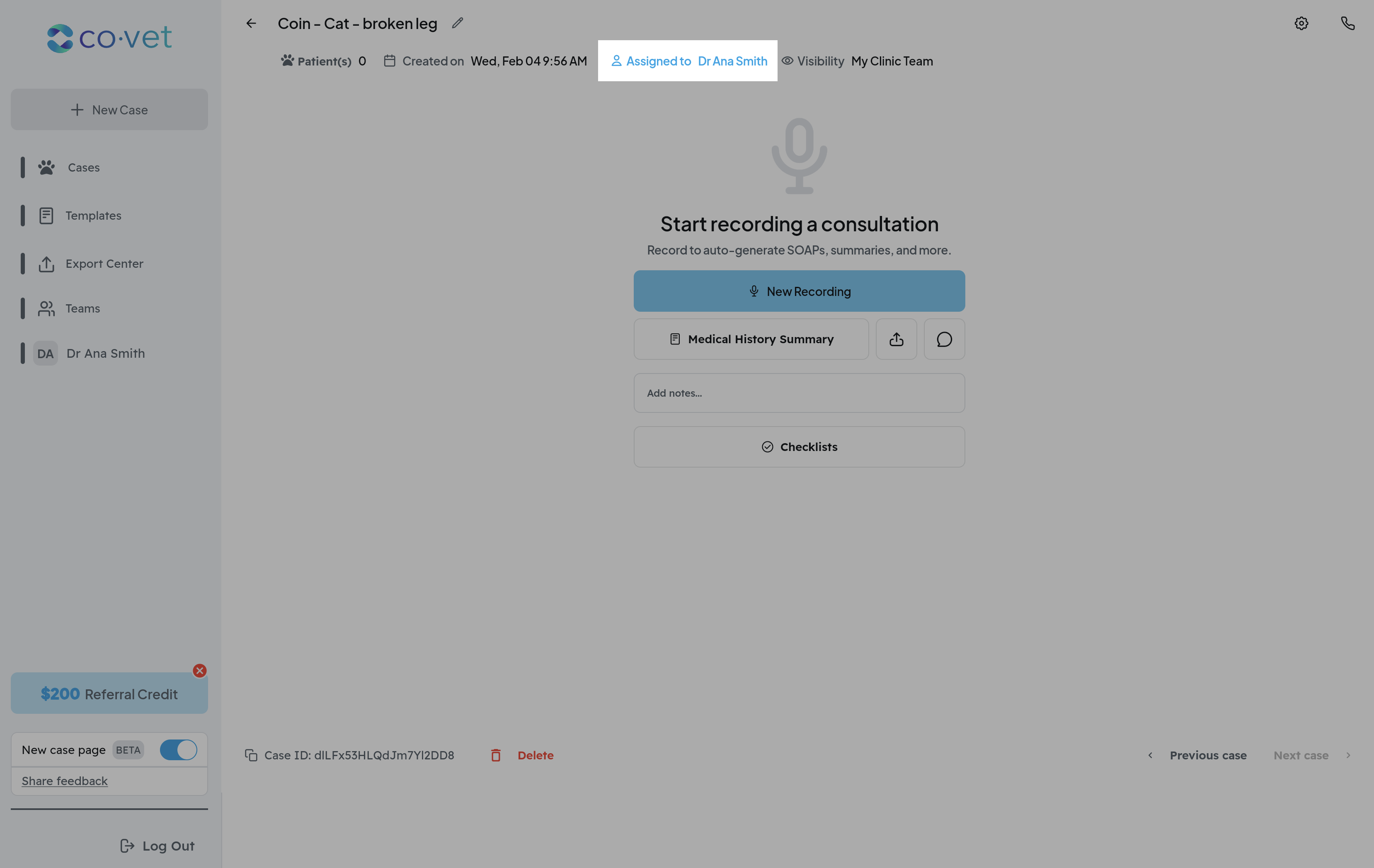
Assigning and Reassigning Cases
Once an unassigned case exists:
- Any member of the owning team (veterinarians, RVTs/technicians, managers) can:
- Assign the case to themselves
- Assign the case to another teammate
- Reassign the case if ownership changes
Assignment happens directly from the Unassigned Cases view.
Once a case is assigned:
- It behaves like a standard assigned case
- All case actions become available based on the user’s role and permissions
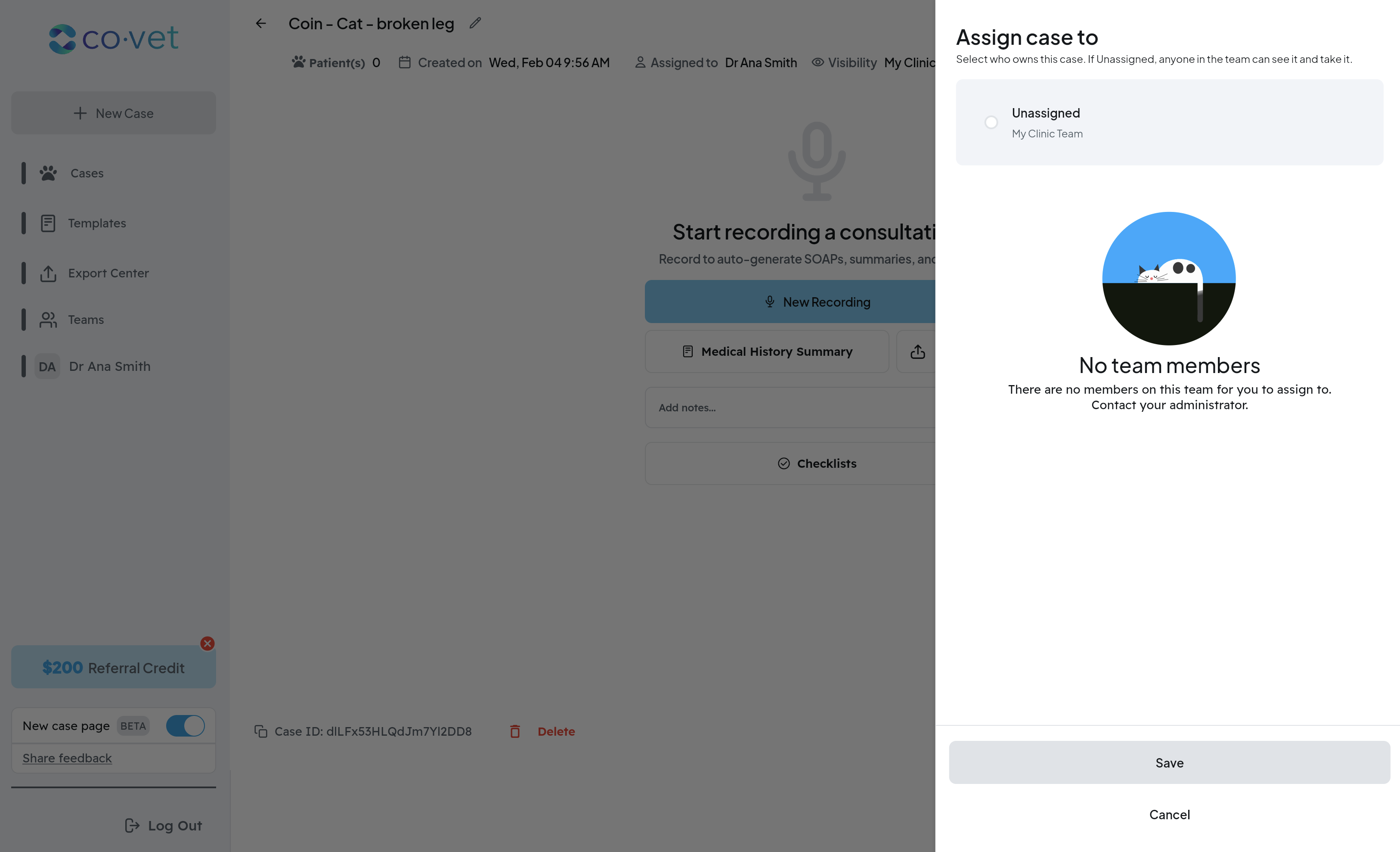
Viewing Unassigned Cases
Unassigned cases are accessible from a dedicated Unassigned Cases bottom sheet on the Cases page.
This view shows:
- Only unassigned cases that belong to your team(s)
- Clear indicators for team ownership and creation date
Cases you don’t have permission to see will not appear.
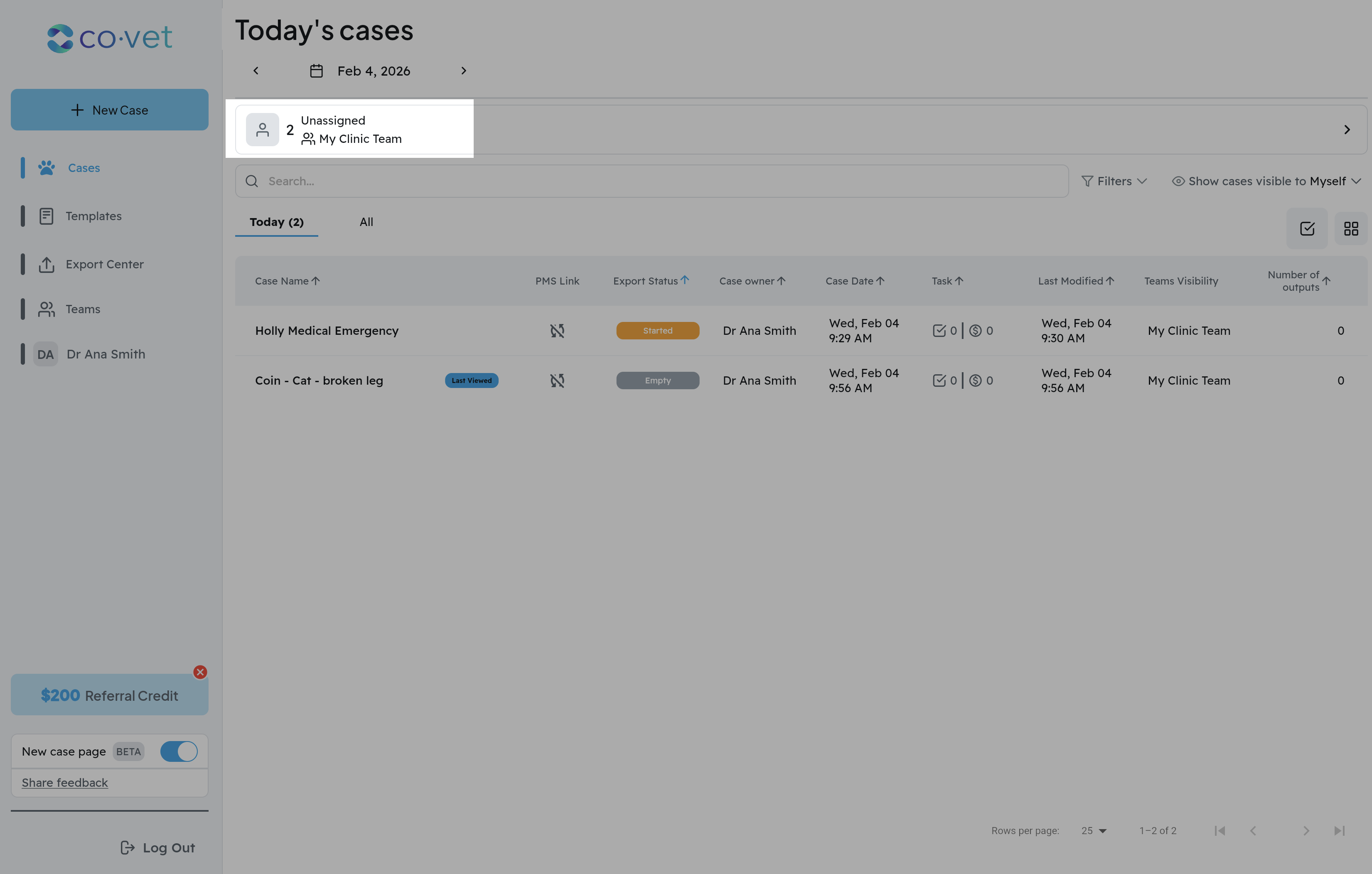
Finding The Right Unassigned Case
Within the Unassigned Cases view, you can quickly find the case you need by:
- Searching by case name
- Sorting by creation date
- Filtering by team (for users in multiple teams)
This helps teams route cases efficiently during busy periods.
Role-Based Actions and Restrictions
Until a case is assigned, some actions may be unavailable depending on role and permissions. For example, support users can’t generate templates until a case is assigned.
Assigned team members:
- Have full access to case actions based on their role
- Can generate documents and complete case workflows once assigned
This keeps workflows clear and prevents actions from happening before ownership is established.
Was this article helpful?
That’s Great!
Thank you for your feedback
Sorry! We couldn't be helpful
Thank you for your feedback
Feedback sent
We appreciate your effort and will try to fix the article