Multi-Day Cases let you keep a patient's stay in one continuous case instead of creating separate cases for each day.
This is especially useful in emergency and urgent-care settings, where patients may remain hospitalized, monitored, or treated over several shifts of days.
This article explains how to mark a case as "Ongoing," how ongoing cases appear in CoVet, and how to manage start and end dates.
What is an Ongoing Case?
In CoVet, an Ongoing Case is a case with a defined start date and end date that spans more than one day.
- The case appears as Ongoing only when the current date falls within that date range.
- Once the end date passes, the case no longer appears in the Ongoing Cases list.
- Notes, recordings, and documents stay in one continuous case record.
Enabling an Ongoing Case
To mark a case as ongoing:
- Open the case on the Cases page.
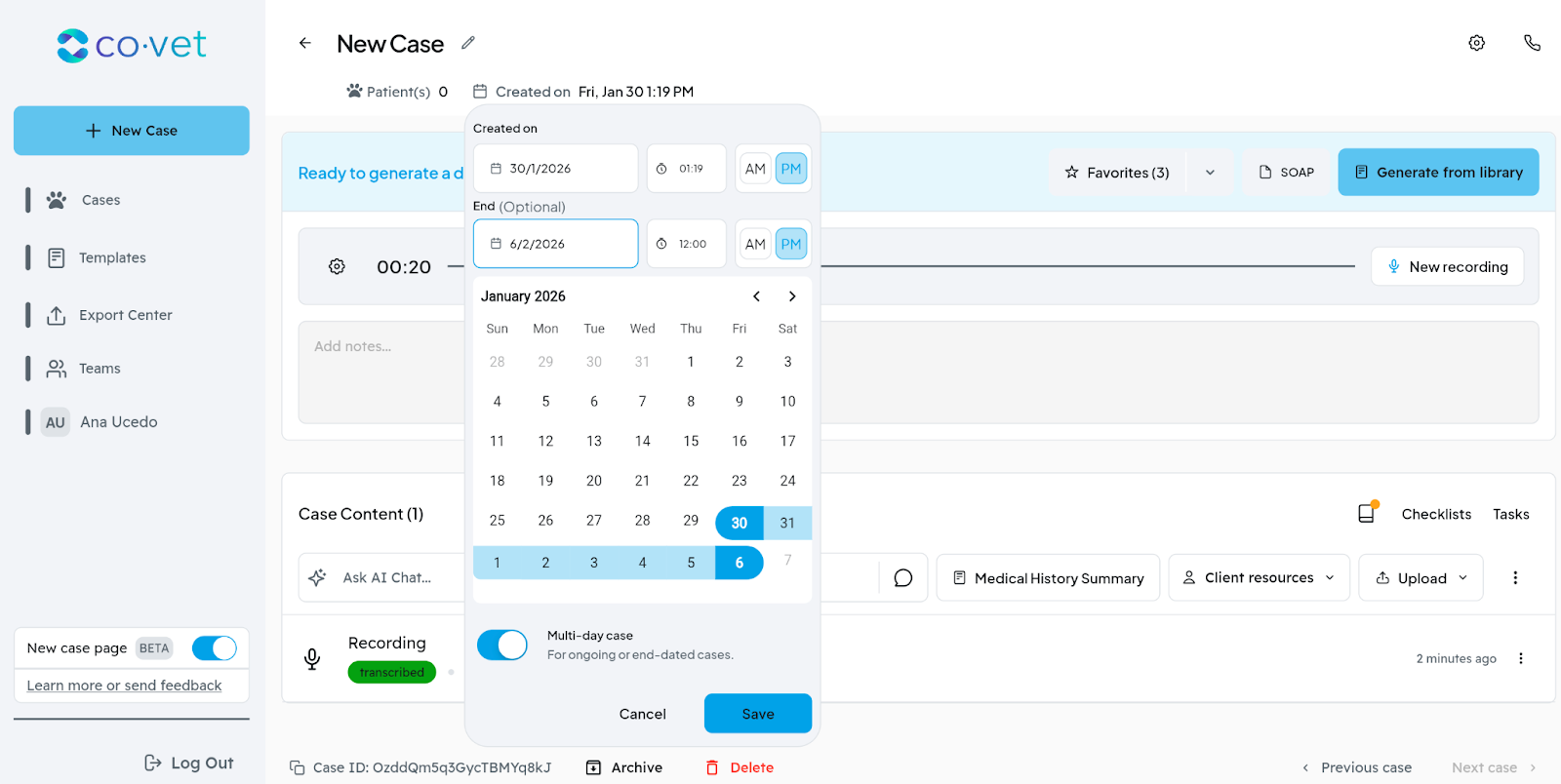
- Open the case date editor.
- Select the case’s start date.
- Toggle “Ongoing Case” ON.
- Set or adjust the end date if needed, then click Save.
Once enabled, the case will display an Ongoing status on its case card.
No additional setup is required.
Managing Start and End Dates
You can edit or schedule the duration of an ongoing case at any time. From the Ongoing Cases view:
- Open a case and click on the date of the case adjust:
- Case Start Date
- Case End Date
Time selection on the end date is optional. If you don’t set a time, CoVet timestamps the end date when you click Save.
You can use this to:
- Extend a case when a patient stays longer than expected.
- Schedule an end date in advance.
- Close out a case cleanly when care is complete.
Viewing Ongoing Cases
Ongoing cases appear in a dedicated Ongoing Cases bottom sheet on the Cases page.
This view shows:
- Only cases that are active today
- Clear Ongoing status labels on each case
Cases automatically appear or disappear from this list based on their date range, so you don’t have to manually remove them.
Finding Ongoing Cases
In the Ongoing Cases view, you can find the case you need by:
- Searching by case name
- Sorting (latest → oldest / oldest → latest)
- Filtering by team member (if you belong to multiple teams)
This helps teams stay oriented during busy shifts and handoffs.
When to Use Multi-Day Cases
Multi-day Cases are ideal when:
- A patient stays in care for multiple days
- Treatments, monitoring, or medications continue across shifts
- You want one shared case for documentation, recordings, and handoffs
Instead of duplicating cases or relying on notes to track continuity, everything stays in one place.
Availability
Multi-day (Ongoing) Cases are available to all users who use the Cases page. There are no plan-based restrictions.
Once enabled for your clinic, any team member can mark a case as ongoing.
Was this article helpful?
That’s Great!
Thank you for your feedback
Sorry! We couldn't be helpful
Thank you for your feedback
Feedback sent
We appreciate your effort and will try to fix the article